The Frustration: You’re staring at the Bluetooth menu. Windows clearly lists “Logitech Pebble 350s,” but every time you click connect, it hangs, fails, or tells you to “Try connecting your device again.” You’ve swapped the batteries, toggled Bluetooth, and even tried a hardware reset, but Windows refuses to finish the handshake.
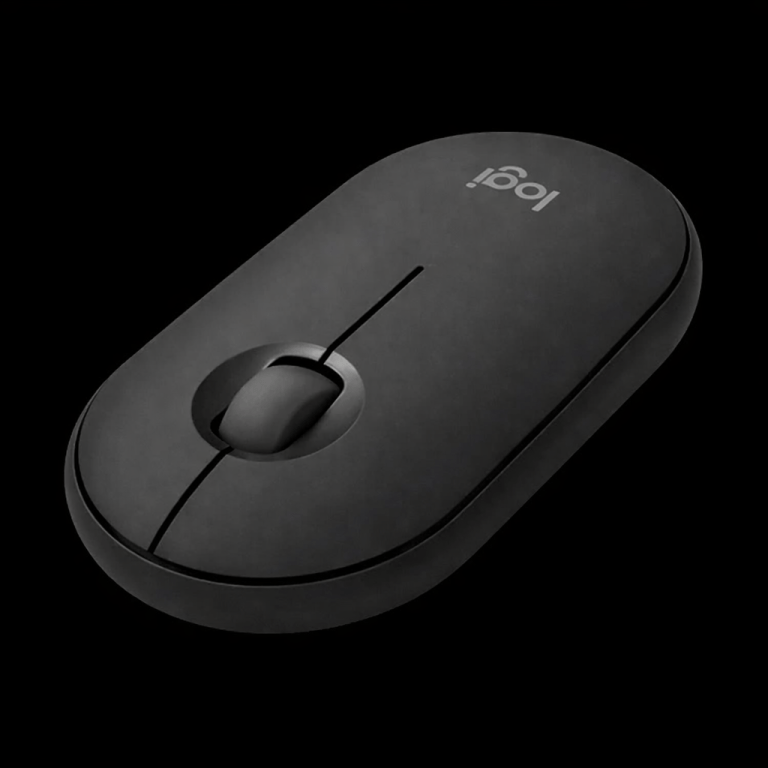
The Culprit: Registry “Ghosts” If your Pebble 350s works on other devices (like a phone or tablet), your mouse isn’t broken—your Windows Registry is. Windows often stores a corrupted Hardware ID (MAC address) for failed pairing attempts. Even if you “Remove Device” in the UI, that corrupted ID stays locked in the system’s memory, blocking any new connection.
The Solution: The “Nuclear” Registry Reset
To fix this, we have to manually flush the Bluetooth device cache.
Step 1: Open the Registry Editor
Press Win + R, type regedit, and hit Enter. (It’s always a good idea to go to File > Export to save a backup before you start).
Step 2: Locate the Bluetooth Device Map
Copy and paste this path into the address bar at the top:
HKEY_LOCAL_MACHINE\SYSTEM\CurrentControlSet\Services\BTHPORT\Parameters\Devices
Step 3: Delete the Corrupted Device Folders
Inside the Devices folder, you’ll see several sub-folders named with strings of numbers and letters (e.g., 4473d646b9ec). These represent the unique IDs of Bluetooth devices your PC has interacted with.
- Right-click and Delete these folders.
- Note: This won’t break your drivers; it simply forces Windows to “forget” all previously seen Bluetooth devices so it can start fresh.
Step 4: Restart Your PC (Mandatory)
A simple shutdown isn’t enough. You must Restart to fully flush the BTHPORT service and clear the system cache.
Step 5: Re-Pair the Pebble 350s
- Flip your mouse over and hold the button for 3 seconds until the light blinks rapidly.
- Go to Settings > Bluetooth & devices > Add Device.
- Select the Pebble 350s. It should now pair instantly.
 Dade Williams